

Sinewave Campus Note Board
On this pageOverview
Overview
Reusable notes or whiteboards are indispensable for brainstorming sessions, agile management, tutorials, games, and many other professional applications. Each Sinewave Campus Note Board item functions as a reusable note that can be edited either by the public, or by users with appropriate World- or Region-level permissions.
In your Inventory, you'll see the Sinewave Campus Note Board represented by this icon: 
For help installing a Sinewave Campus Note Board object, please review our information on using the Region Editor.
Sinewave Campus Note Board controls
Read mode
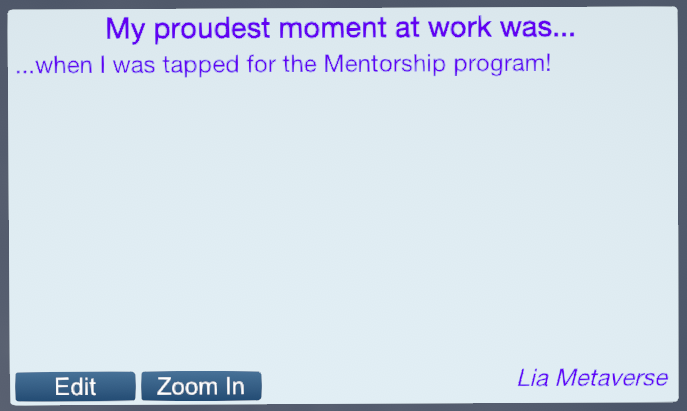
In read mode, each note features a title, text, and author name. There are also two buttons.
Edit: Clicking the Edit button allows you to make changes to the card, if you have permission to do so (or the card is set to be edited by the public).
Zoom In: Clicking the Zoom In button causes your camera to focus on the card. To look away again, click Zoom Out.
Write mode
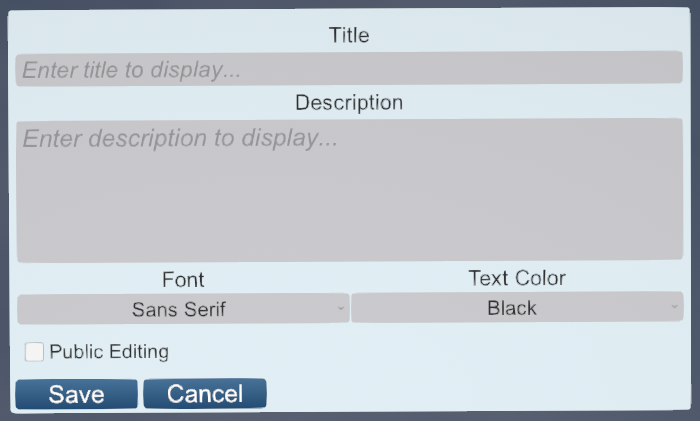
In write mode, you can edit the note's contents or grant editing permissions to the public. Here's a brief overview of the relevant fields and options.
| Field or option | Function |
|---|---|
| Title | Allows you to enter a title for the card. |
| Description | Allows you to enter text that will be displayed on the card. |
| Font | Allows you to choose from a variety of fonts. |
| Text Color | Allows you to choose from a variety of text colors. |
| Public Editing | Checking this box will enable the card to be edited by anyone. If this box remains unchecked, only users with advanced permissions can edit the card. |
| Save | Saves your changes. |
| Cancel | Cancels your changes. |